> ## Documentation Index
> Fetch the complete documentation index at: https://nango-wari-migrated-bigcommerce-docs.mintlify.site/llms.txt
> Use this file to discover all available pages before exploring further.
# Clerk - How do I link my account?
# Overview
To authenticate with Clerk, you need:
1. **Secret Key** - A key that grants Nango permission to interact with Clerk's APIs resources and services.
This guide will walk you through obtaining your **Secret Key** within Clerk.
### Prerequisites:
* You must have an account with Clerk.
### Instructions:
#### Step 1: Retrieve your Clerk Secret Key
1. Sign in to your [Clerk Dashboard](https://dashboard.clerk.com/)
2. Select your application (or create one if you haven't already)
3. Navigate to **Configure** > **Developers** > **API Keys**
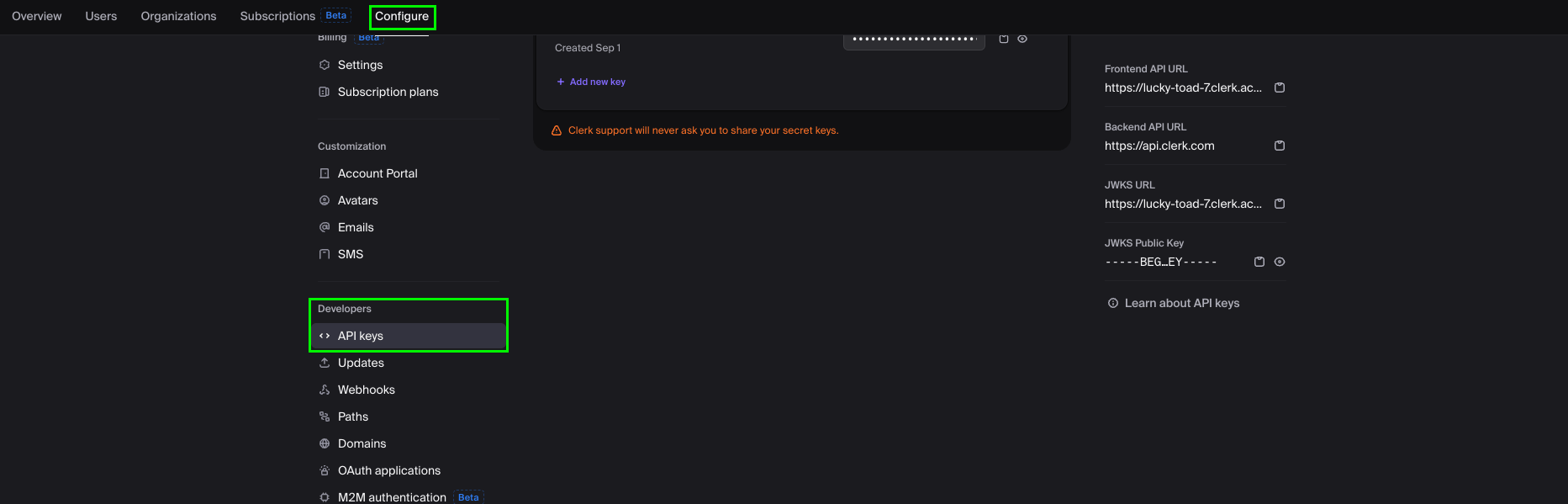 4. You'll see two types of keys:
* **Publishable Key**: Starts with `pk_test_` or `pk_live_` (for frontend use)
* **Secret Key**: Starts with `sk_test_` or `sk_live_` (for backend use - this is what you need)
4. You'll see two types of keys:
* **Publishable Key**: Starts with `pk_test_` or `pk_live_` (for frontend use)
* **Secret Key**: Starts with `sk_test_` or `sk_live_` (for backend use - this is what you need)
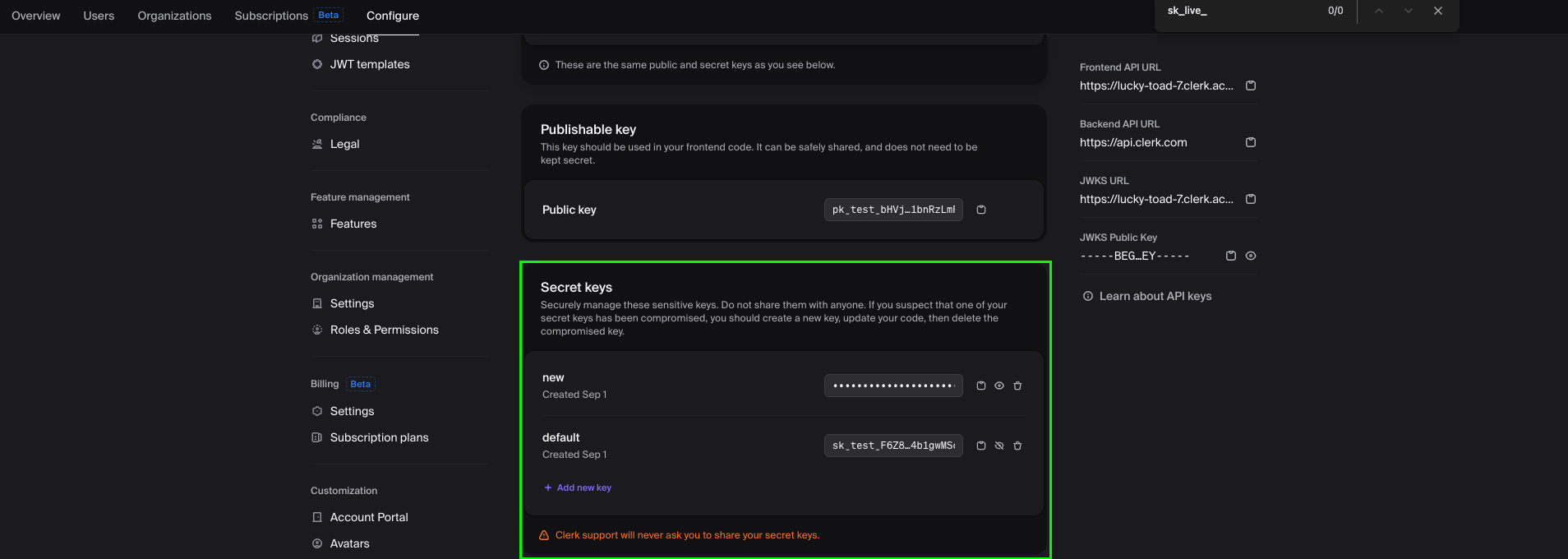 5. Copy your **Secret Key**
Keep your Secret Key secure and never expose it in client-side code or public repositories. This key provides full access to your Clerk backend API.
If you're just testing the integration, use your development key (`sk_test_...`). For production, use your live key (`sk_live_...`).
#### Step 2: Enter credentials in the Connect UI
Once you have your Clerk **Secret Key**:
1. Open the form where you need to authenticate with Clerk.
2. Enter your **Secret Key** in its designated field.
3. Submit the form, and you should be successfully authenticated.
5. Copy your **Secret Key**
Keep your Secret Key secure and never expose it in client-side code or public repositories. This key provides full access to your Clerk backend API.
If you're just testing the integration, use your development key (`sk_test_...`). For production, use your live key (`sk_live_...`).
#### Step 2: Enter credentials in the Connect UI
Once you have your Clerk **Secret Key**:
1. Open the form where you need to authenticate with Clerk.
2. Enter your **Secret Key** in its designated field.
3. Submit the form, and you should be successfully authenticated.
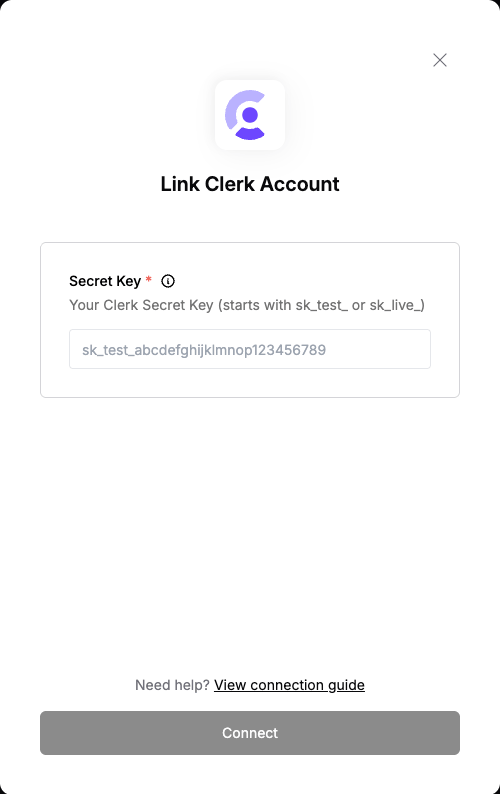 You are now connected to Clerk.