> ## Documentation Index
> Fetch the complete documentation index at: https://nango-wari-migrated-bigcommerce-docs.mintlify.site/llms.txt
> Use this file to discover all available pages before exploring further.
# Quickbooks - How do I link my account?
# Overview
To authenticate with Quickbooks, you need:
1. **Realm ID** - This is an ID that identifies an individual QuickBooks Online company.
This guide will walk you through finding your QuickBooks **Realm ID**.
### Prerequisites:
* You must have a QuickBooks account and a company set up within it.
### Instructions:
#### Step 1: Finding your Realm ID
* You can leave this blank to allow Nango to automatically retrieve it for you, or you can manually override it by specifying your specific Realm Id.
* To specify your **Realm Id**:
1. Log in to your [QuickBooks](https://qbo.intuit.com/) account.
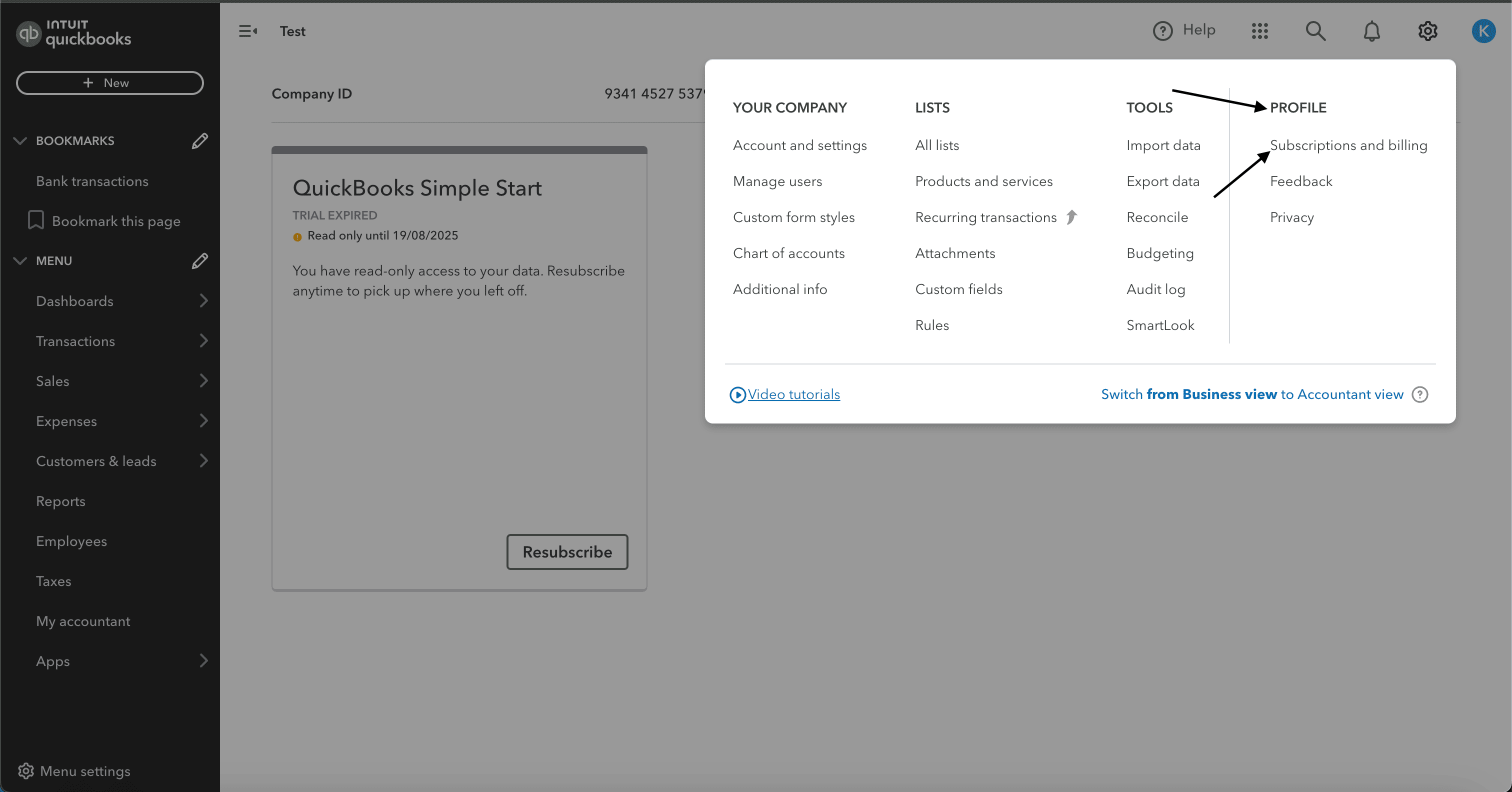
2. Click on the settings icon in the top-right corner, then, under **PROFILE**, click the **Subscription and Billing** button.
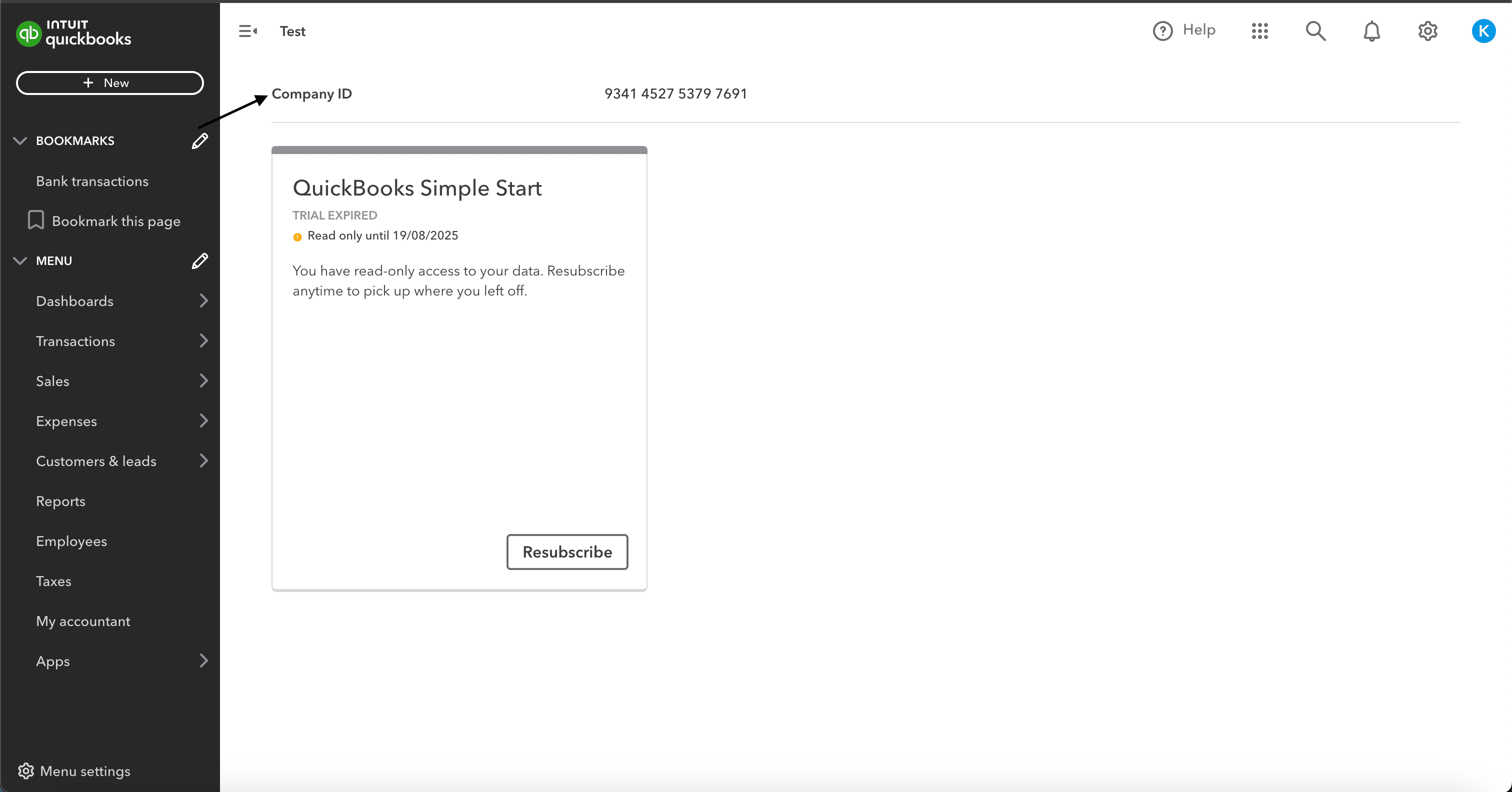
 3. You can find your **Realm ID** in the **Company ID** row.
 #### Step 2: Enter your **Realm ID** in the Connect UI
Once you have the **Realm ID**:
1. Open the form where you need to authenticate with Quickbooks.
2. Enter your **Realm ID** in the respective field.
3. Submit the form, and you should be successfully authenticated.
#### Step 2: Enter your **Realm ID** in the Connect UI
Once you have the **Realm ID**:
1. Open the form where you need to authenticate with Quickbooks.
2. Enter your **Realm ID** in the respective field.
3. Submit the form, and you should be successfully authenticated.
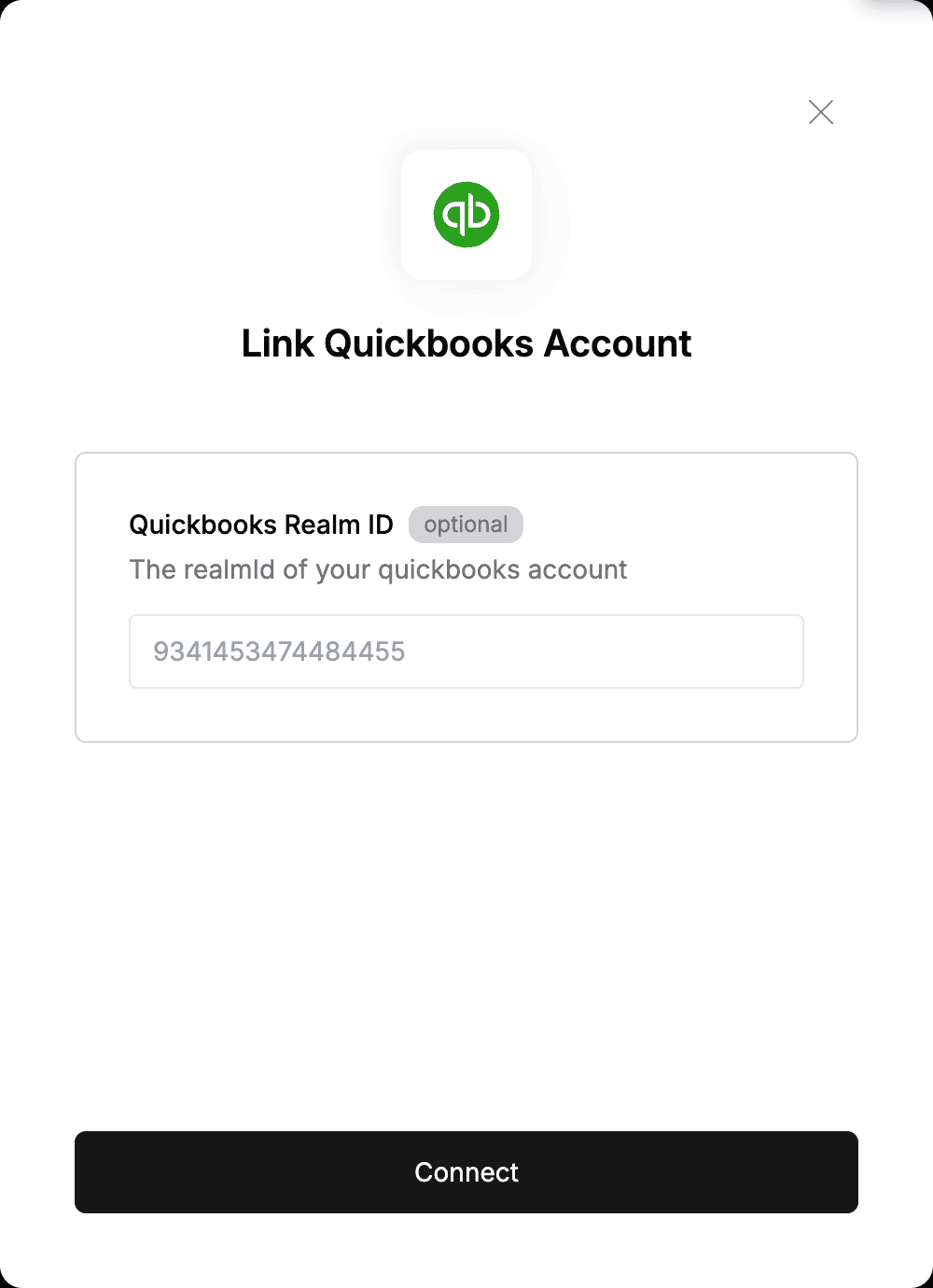 You are now connected to Quickbooks.